> ## Documentation Index
> Fetch the complete documentation index at: https://docs.monterey.ai/llms.txt
> Use this file to discover all available pages before exploring further.
# HubSpot
> Ingest HubSpot Deals and Service Hub Tickets
export const provider_0 = "HubSpot"
export const customFieldSelectionStrategy_0 = undefined
export const customFilteringStrategy_0 = undefined
export const customPerformanceConsiderations_0 = undefined
 ### Overview
HubSpot unifies sales, marketing, and customer data on a single platform. Connect this data with Reforge Insights to find more insights, and link feedback back to real customer value.
### Get Started
You can find the HubSpot integration on your **[integration settings page](https://insights.reforge.com/w/default/settings/integrations/hubspot)**.
A user with access to both Reforge Insights as well as HubSpot will need to authorize the connection.
## Advanced Configuration
### Overview
HubSpot unifies sales, marketing, and customer data on a single platform. Connect this data with Reforge Insights to find more insights, and link feedback back to real customer value.
### Get Started
You can find the HubSpot integration on your **[integration settings page](https://insights.reforge.com/w/default/settings/integrations/hubspot)**.
A user with access to both Reforge Insights as well as HubSpot will need to authorize the connection.
## Advanced Configuration
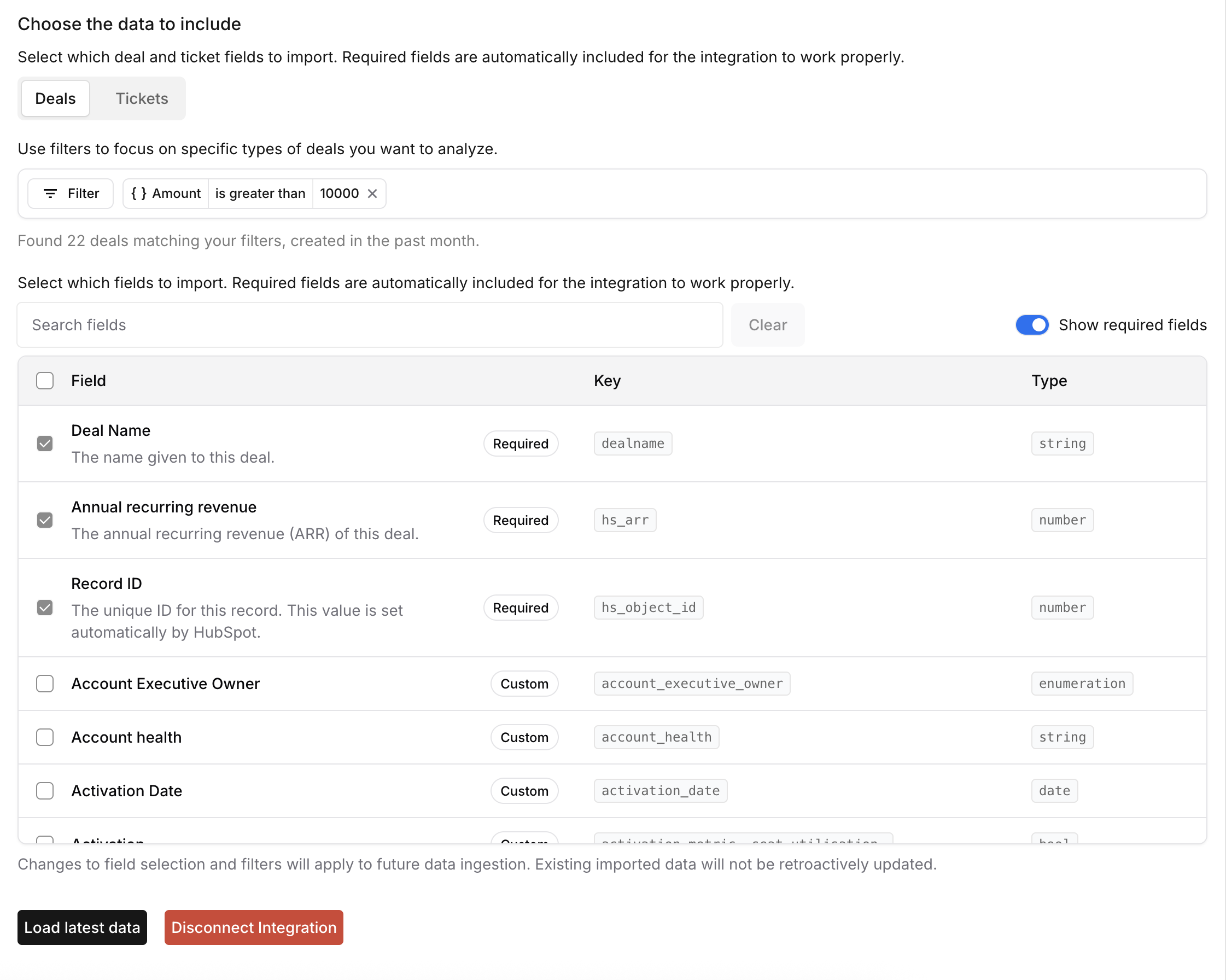 After connecting your HubSpot account, you can customize exactly what data gets imported and how it's filtered. The HubSpot integration allows you to import deals, service hub tickets, companies, and contacts from your HubSpot instance with precise control over field selection and filtering criteria.
### Configuration Sections
#### 1. Choose What to Include
The HubSpot integration supports importing multiple data types independently:
##### **Include Deal Notes**
Enable this option to import notes associated with deals in addition to the deal information itself.
##### **Select Deal Stages and Pipelines**
Select the deal stages and pipelines you want to import from. This will help you narrow down the data to only the deals that are relevant to your use case.
##### **Include Service Hub Tickets**
Enable this option to import Service Hub tickets and their associated data.
#### 2. Narrow Down Your Data
Use filters to focus on specific types of deals and tickets you want to analyze. This helps you import only the data that's relevant to your use case.
All filtering is based on the primary data type (deals or tickets).
**Important**: The filtering preview shows how many items match your filters
in the past month, but the actual ingestion will be lower. Deals without any
notes and Service Hub Tickets without content will not be ingested, even if
they match your filter criteria.
##### Filter Types and Operators
Different field types support different filtering operators:
**Available Operators:**
* `contains` - Field contains the specified text
* `does not contain` - Field does not contain the specified text
**Examples:**
* Subject contains "billing"
* Description does not contain "resolved"
**Available Operators:**
* `is` - Field equals the specified number
* `is not` - Field does not equal the specified number
* `is greater than` - Field is greater than the specified number
* `is less than` - Field is less than the specified number
* `is less than or equal to` - Field is less than or equal to the specified number
* `is greater than or equal to` - Field is greater than or equal to the specified number
* `is empty` - Field is empty
* `is not empty` - Field is not empty
* `between` - Field falls within the specified range
**Examples:**
* Priority equals 3
* Satisfaction score is greater than 4
**Available Operators:**
* `between` - Field falls within the specified date range
* `is empty` - Field is empty
* `is not empty` - Field is not empty
**Examples:**
* Updated date range between 2024-01-01 and 2024-02-01
* Created date is empty
**Available Operators:**
* `is` - Field is any of the specified values
* `is not` - Field is not any of the specified values
* `is empty` - Field is empty
* `is not empty` - Field is not empty
**Examples:**
* Tags is "urgent" or "billing"
* Status is not "closed" or "solved"
**Available Operators:**
* `is` - Field matches the specified boolean value (true/false)
* `is not` - Field does not match the specified boolean value
* `is empty` - Field is empty
* `is not empty` - Field is not empty
**Examples:**
* Is public is true
* Has incidents is false
##### Multiple Filters
When you add multiple filters, they are combined using an **AND** operator. This means tickets must match ALL filter criteria to be imported.
Start with broader filters and gradually add more specific ones to fine-tune
your data selection.
#### 3. Choose the Data to Include
Select which deal and ticket fields to import. The data is organized into tabs representing different data types that can be ingested.
##### Data Type Tabs
Deal information including name, amount, stage, close date, and custom deal fields.
Service ticket information including subject, content, status, priority, and
custom ticket fields.
##### Field Selection
Fields marked as **Required** are essential for the integration to function properly and cannot be deselected. These fields include:
* **Deals**: `hs_object_id`, `createdate`, `hs_lastmodifieddate`, `hs_arr`, `dealname`, `dealstage`
* **Service Hub Tickets**: `subject`, `content`, `createdate`, `hs_lastmodifieddate`
Required fields are automatically included in the ingestion process regardless
of selection status.
**Preselected Fields**: Beyond the required fields, we automatically preselect additional commonly used fields to help you get started quickly with meaningful data. These preselected fields include useful metadata that are frequently needed for analysis. You can deselect any of these preselected fields if they're not relevant to your specific use case.
Standard HubSpot fields that are available across all instances. These include common fields like:
* Deal stages and pipelines
* Ticket priorities and categories
* Revenue and deal amounts
Select the fields that are relevant to your analysis and reporting needs.
Custom fields created in your HubSpot instance are automatically detected and available for selection. These fields:
* Are fetched directly from your HubSpot configuration
* Include the custom field name and description
* Support all standard filtering and selection options
* Are stored with their original field names in the metadata
Custom fields are dynamically loaded from your HubSpot instance, so any changes to custom fields in HubSpot will be reflected in the integration.
### Best Practices
{customFieldSelectionStrategy_0 ||
`Start with required fields and commonly used standard fields - Add custom
fields that are consistently populated and relevant to your analysis -
Consider the impact on data volume when selecting many fields - Review and
update field selections as your {provider} usage evolves`}
{customFilteringStrategy_0 ||
`Use filters to focus on the most relevant data for your use case - Apply
filters to narrow down to specific statuses, categories, or priorities -
Remember that only records with content will be ingested regardless of filters`}
{customPerformanceConsiderations_0 ||
`More fields and fewer filters = larger data volume - Consider the frequency
of your data sync when selecting options - Monitor ingestion performance and
adjust as needed`}
### Next Steps
After configuring your {provider_0} integration:
1. **Test the configuration** by triggering a manual sync
2. **Monitor the ingestion** to ensure data is being imported correctly
3. **Review the imported data** in your analytics dashboard
4. **Adjust filters and fields** based on your initial results
5. **Set up automated workflows** using the imported HubSpot data
Changes to field selection and filters will apply to future data ingestion.
Existing imported data will not be retroactively updated.
### Data Collected
Once Reforge Insights and HubSpot are connected successfully, data will be pulled from periodically. The first time Reforge Insights loads data, it will look back 1 week. After that, it will ingest all new data up to your plan's feedback volume limit.
**Important**: Only deals with associated notes and Service Hub tickets with content will be ingested. Empty records will be filtered out during the ingestion process, even if they match your filter criteria.
### Pricing Volume Impact
| Entity Type | Volume Impact |
| :----------------- | :-----------: |
| Deal Note | **1x** |
| Service Hub Ticket | **1x** |
View the [pricing page](/pricing/volume-calculation) for more information on
how we calculate volume usage.
After connecting your HubSpot account, you can customize exactly what data gets imported and how it's filtered. The HubSpot integration allows you to import deals, service hub tickets, companies, and contacts from your HubSpot instance with precise control over field selection and filtering criteria.
### Configuration Sections
#### 1. Choose What to Include
The HubSpot integration supports importing multiple data types independently:
##### **Include Deal Notes**
Enable this option to import notes associated with deals in addition to the deal information itself.
##### **Select Deal Stages and Pipelines**
Select the deal stages and pipelines you want to import from. This will help you narrow down the data to only the deals that are relevant to your use case.
##### **Include Service Hub Tickets**
Enable this option to import Service Hub tickets and their associated data.
#### 2. Narrow Down Your Data
Use filters to focus on specific types of deals and tickets you want to analyze. This helps you import only the data that's relevant to your use case.
All filtering is based on the primary data type (deals or tickets).
**Important**: The filtering preview shows how many items match your filters
in the past month, but the actual ingestion will be lower. Deals without any
notes and Service Hub Tickets without content will not be ingested, even if
they match your filter criteria.
##### Filter Types and Operators
Different field types support different filtering operators:
**Available Operators:**
* `contains` - Field contains the specified text
* `does not contain` - Field does not contain the specified text
**Examples:**
* Subject contains "billing"
* Description does not contain "resolved"
**Available Operators:**
* `is` - Field equals the specified number
* `is not` - Field does not equal the specified number
* `is greater than` - Field is greater than the specified number
* `is less than` - Field is less than the specified number
* `is less than or equal to` - Field is less than or equal to the specified number
* `is greater than or equal to` - Field is greater than or equal to the specified number
* `is empty` - Field is empty
* `is not empty` - Field is not empty
* `between` - Field falls within the specified range
**Examples:**
* Priority equals 3
* Satisfaction score is greater than 4
**Available Operators:**
* `between` - Field falls within the specified date range
* `is empty` - Field is empty
* `is not empty` - Field is not empty
**Examples:**
* Updated date range between 2024-01-01 and 2024-02-01
* Created date is empty
**Available Operators:**
* `is` - Field is any of the specified values
* `is not` - Field is not any of the specified values
* `is empty` - Field is empty
* `is not empty` - Field is not empty
**Examples:**
* Tags is "urgent" or "billing"
* Status is not "closed" or "solved"
**Available Operators:**
* `is` - Field matches the specified boolean value (true/false)
* `is not` - Field does not match the specified boolean value
* `is empty` - Field is empty
* `is not empty` - Field is not empty
**Examples:**
* Is public is true
* Has incidents is false
##### Multiple Filters
When you add multiple filters, they are combined using an **AND** operator. This means tickets must match ALL filter criteria to be imported.
Start with broader filters and gradually add more specific ones to fine-tune
your data selection.
#### 3. Choose the Data to Include
Select which deal and ticket fields to import. The data is organized into tabs representing different data types that can be ingested.
##### Data Type Tabs
Deal information including name, amount, stage, close date, and custom deal fields.
Service ticket information including subject, content, status, priority, and
custom ticket fields.
##### Field Selection
Fields marked as **Required** are essential for the integration to function properly and cannot be deselected. These fields include:
* **Deals**: `hs_object_id`, `createdate`, `hs_lastmodifieddate`, `hs_arr`, `dealname`, `dealstage`
* **Service Hub Tickets**: `subject`, `content`, `createdate`, `hs_lastmodifieddate`
Required fields are automatically included in the ingestion process regardless
of selection status.
**Preselected Fields**: Beyond the required fields, we automatically preselect additional commonly used fields to help you get started quickly with meaningful data. These preselected fields include useful metadata that are frequently needed for analysis. You can deselect any of these preselected fields if they're not relevant to your specific use case.
Standard HubSpot fields that are available across all instances. These include common fields like:
* Deal stages and pipelines
* Ticket priorities and categories
* Revenue and deal amounts
Select the fields that are relevant to your analysis and reporting needs.
Custom fields created in your HubSpot instance are automatically detected and available for selection. These fields:
* Are fetched directly from your HubSpot configuration
* Include the custom field name and description
* Support all standard filtering and selection options
* Are stored with their original field names in the metadata
Custom fields are dynamically loaded from your HubSpot instance, so any changes to custom fields in HubSpot will be reflected in the integration.
### Best Practices
{customFieldSelectionStrategy_0 ||
`Start with required fields and commonly used standard fields - Add custom
fields that are consistently populated and relevant to your analysis -
Consider the impact on data volume when selecting many fields - Review and
update field selections as your {provider} usage evolves`}
{customFilteringStrategy_0 ||
`Use filters to focus on the most relevant data for your use case - Apply
filters to narrow down to specific statuses, categories, or priorities -
Remember that only records with content will be ingested regardless of filters`}
{customPerformanceConsiderations_0 ||
`More fields and fewer filters = larger data volume - Consider the frequency
of your data sync when selecting options - Monitor ingestion performance and
adjust as needed`}
### Next Steps
After configuring your {provider_0} integration:
1. **Test the configuration** by triggering a manual sync
2. **Monitor the ingestion** to ensure data is being imported correctly
3. **Review the imported data** in your analytics dashboard
4. **Adjust filters and fields** based on your initial results
5. **Set up automated workflows** using the imported HubSpot data
Changes to field selection and filters will apply to future data ingestion.
Existing imported data will not be retroactively updated.
### Data Collected
Once Reforge Insights and HubSpot are connected successfully, data will be pulled from periodically. The first time Reforge Insights loads data, it will look back 1 week. After that, it will ingest all new data up to your plan's feedback volume limit.
**Important**: Only deals with associated notes and Service Hub tickets with content will be ingested. Empty records will be filtered out during the ingestion process, even if they match your filter criteria.
### Pricing Volume Impact
| Entity Type | Volume Impact |
| :----------------- | :-----------: |
| Deal Note | **1x** |
| Service Hub Ticket | **1x** |
View the [pricing page](/pricing/volume-calculation) for more information on
how we calculate volume usage.