> ## Documentation Index
> Fetch the complete documentation index at: https://docs.monterey.ai/llms.txt
> Use this file to discover all available pages before exploring further.
# Customer Portal
> Reforge Insights portal supports a public feedback collection mechanism and a view to share your roadmap and progress.
## Feedback Board
To utilize the feedback board to provide your users with a way to provide feedback to you, go back to the navigation menu and choose "Feedback board" in the *Workflows* section.
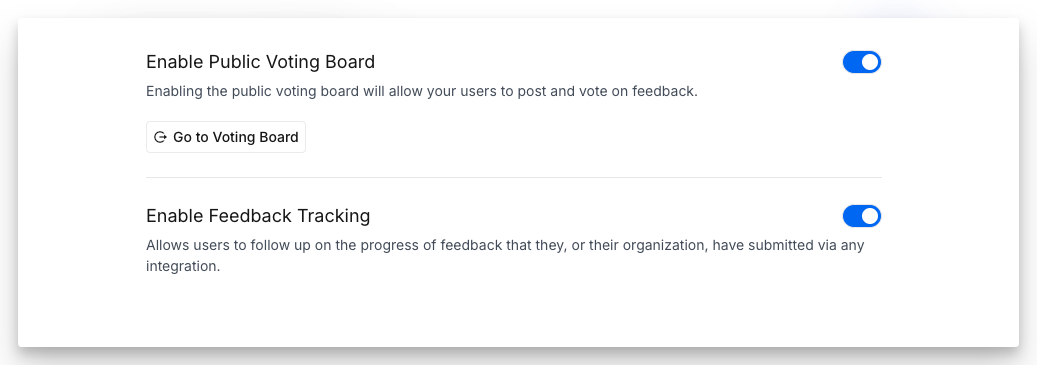
Simply toggle "Enable Public Voting Board," and then you can utilize your portal link to share with customers or link to from your own sites and apps.
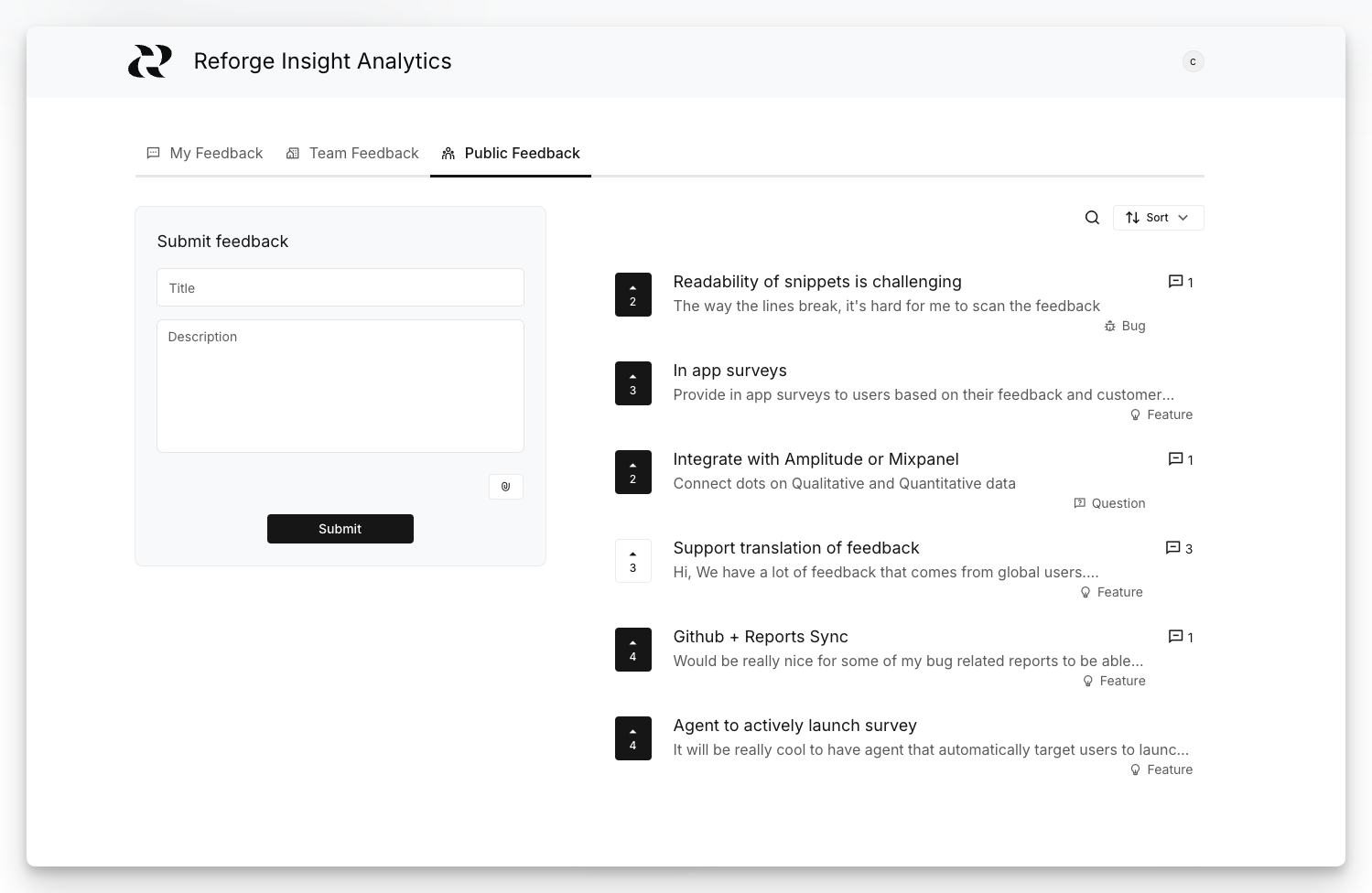
 When users log into your public portal, they can view, vote, and comment on feedback and requests. Each submitted feedback will be auto categorized as `request, issues, question, appreciation`, and will be ready to get analyzed in your dashboard, along with other data sources.
 Comments on Portal Feedback
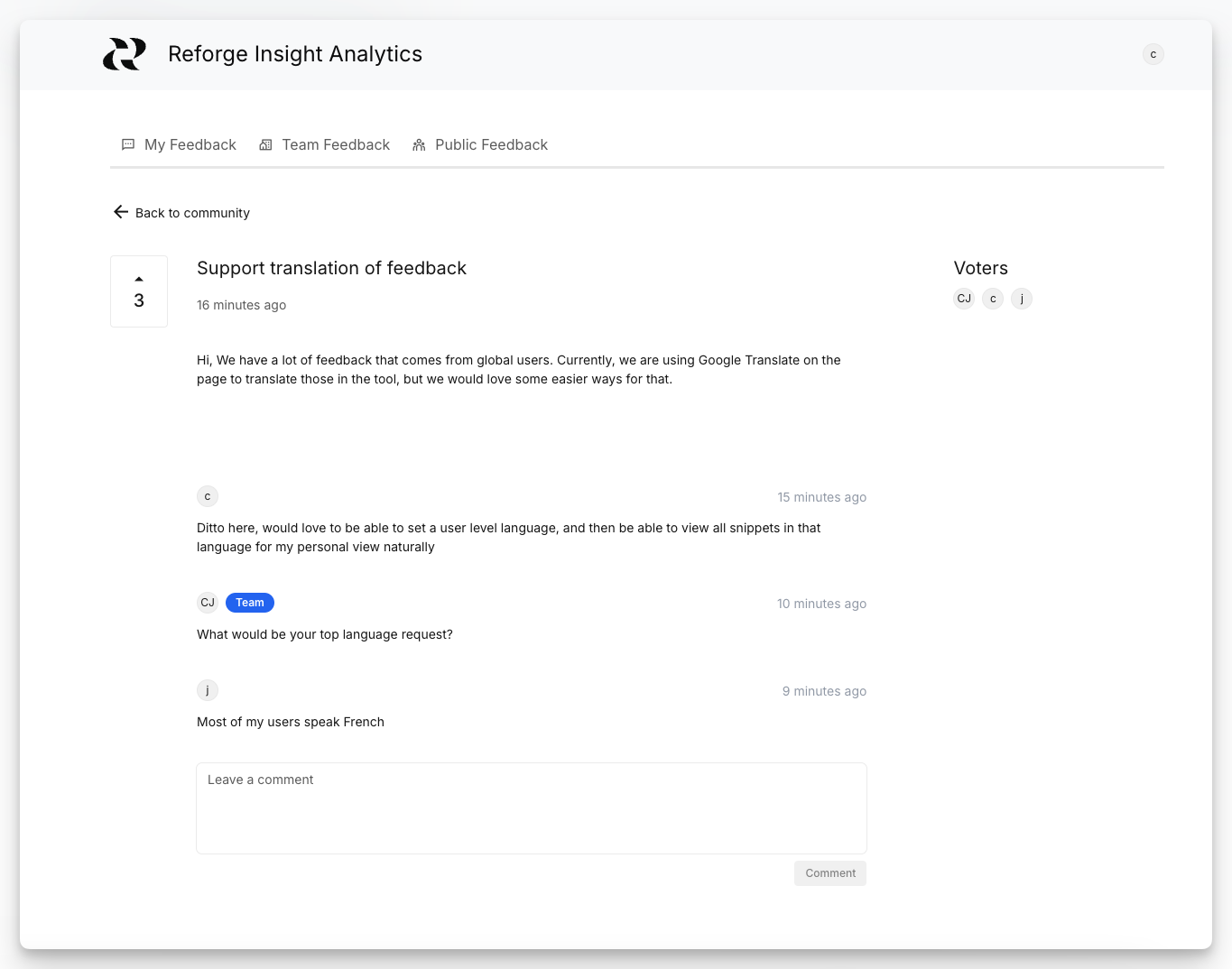
After users have submitted feedback to the Feedback board or on a Roadmap item, comments may be made on that feedback, both by public users, as well as users internal to your team.
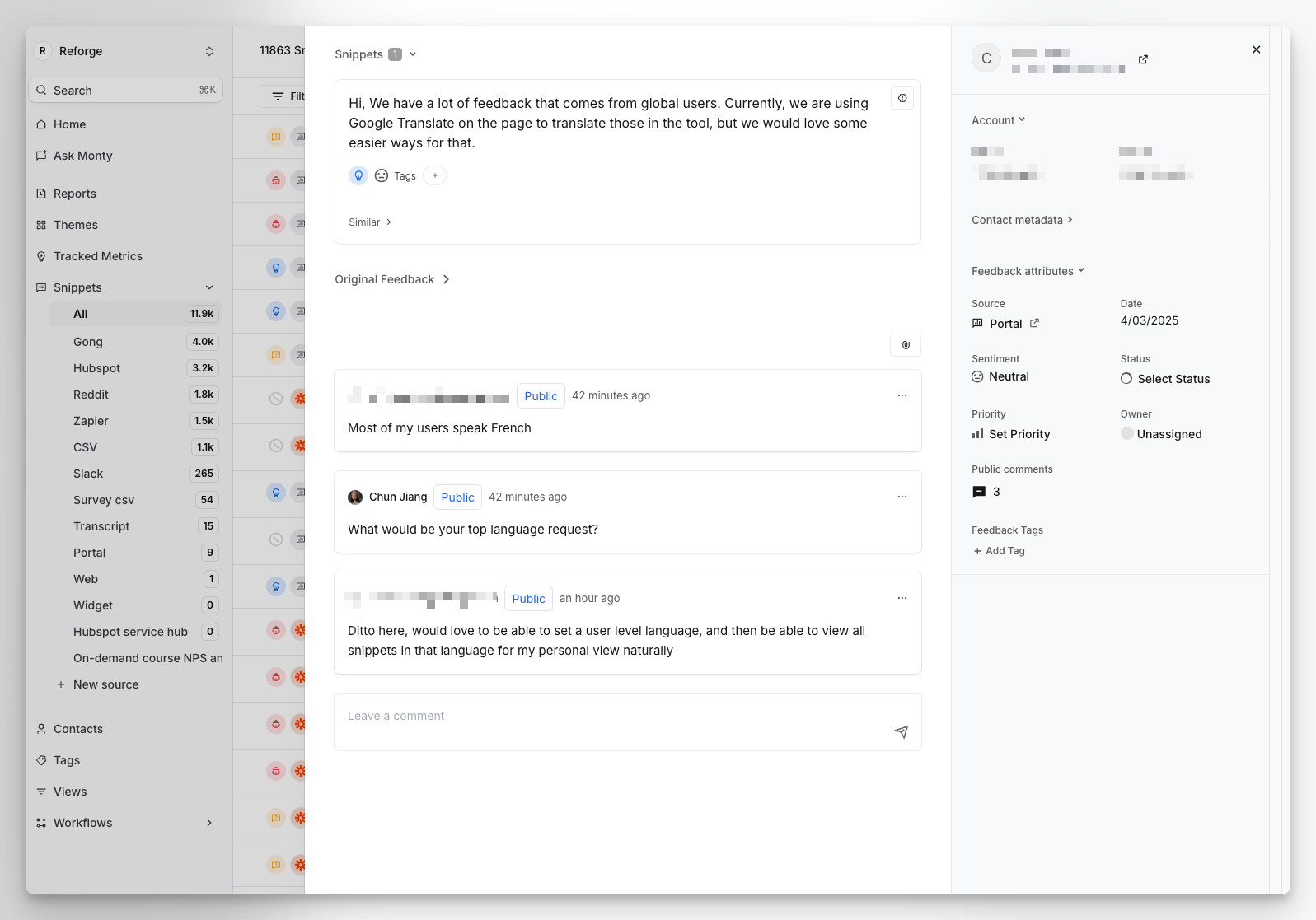
Comments made to the Reforge Insights internal app view will be private by default, and not displayed publicly. They can be optionally made public, if desired to reply to the external users.
When viewed in the internal view of Reforge Insights, that your team has access to, you can see both public and private comments.
Comments on Portal Feedback
After users have submitted feedback to the Feedback board or on a Roadmap item, comments may be made on that feedback, both by public users, as well as users internal to your team.
Comments made to the Reforge Insights internal app view will be private by default, and not displayed publicly. They can be optionally made public, if desired to reply to the external users.
When viewed in the internal view of Reforge Insights, that your team has access to, you can see both public and private comments.
 **Enable Feedback Tracking**
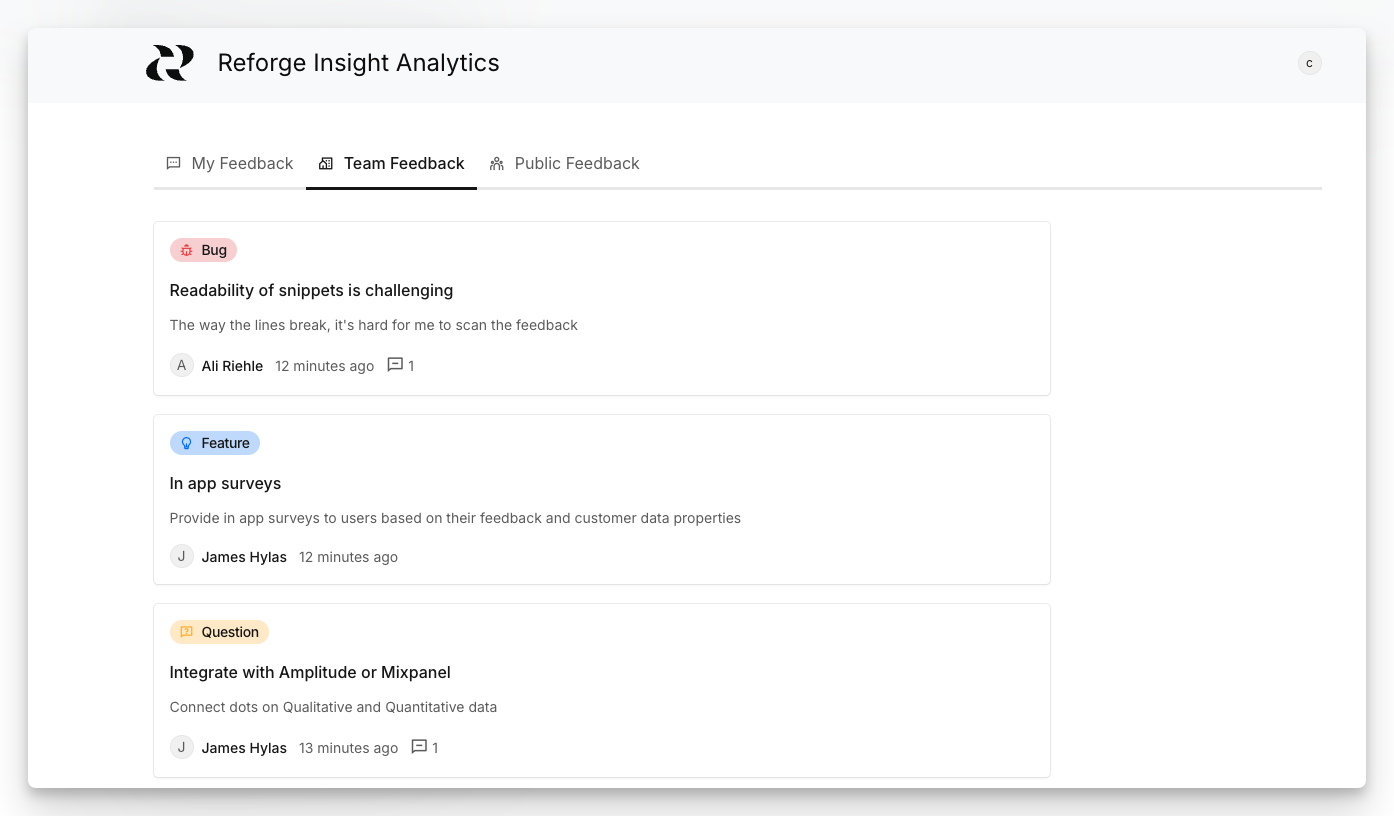 Feedback Tracking will allow your users to view feedback submitted to your workspace **from any source by them and from users in the same organization.**
This can be useful if you wish to allow users from a given company to understand what has already been asked or requested by them and their teammates. **Only users who have signed in with a work email will be able to access the additional views here.** For example, users with "@gmail.com" will not have access, but users with "@company-name.com" will.
Note that these views will show the feedback content (title & description), who posted the feedback, and when. They will also be able to comment on this feedback.
## Roadmap
Feedback Tracking will allow your users to view feedback submitted to your workspace **from any source by them and from users in the same organization.**
This can be useful if you wish to allow users from a given company to understand what has already been asked or requested by them and their teammates. **Only users who have signed in with a work email will be able to access the additional views here.** For example, users with "@gmail.com" will not have access, but users with "@company-name.com" will.
Note that these views will show the feedback content (title & description), who posted the feedback, and when. They will also be able to comment on this feedback.
## Roadmap
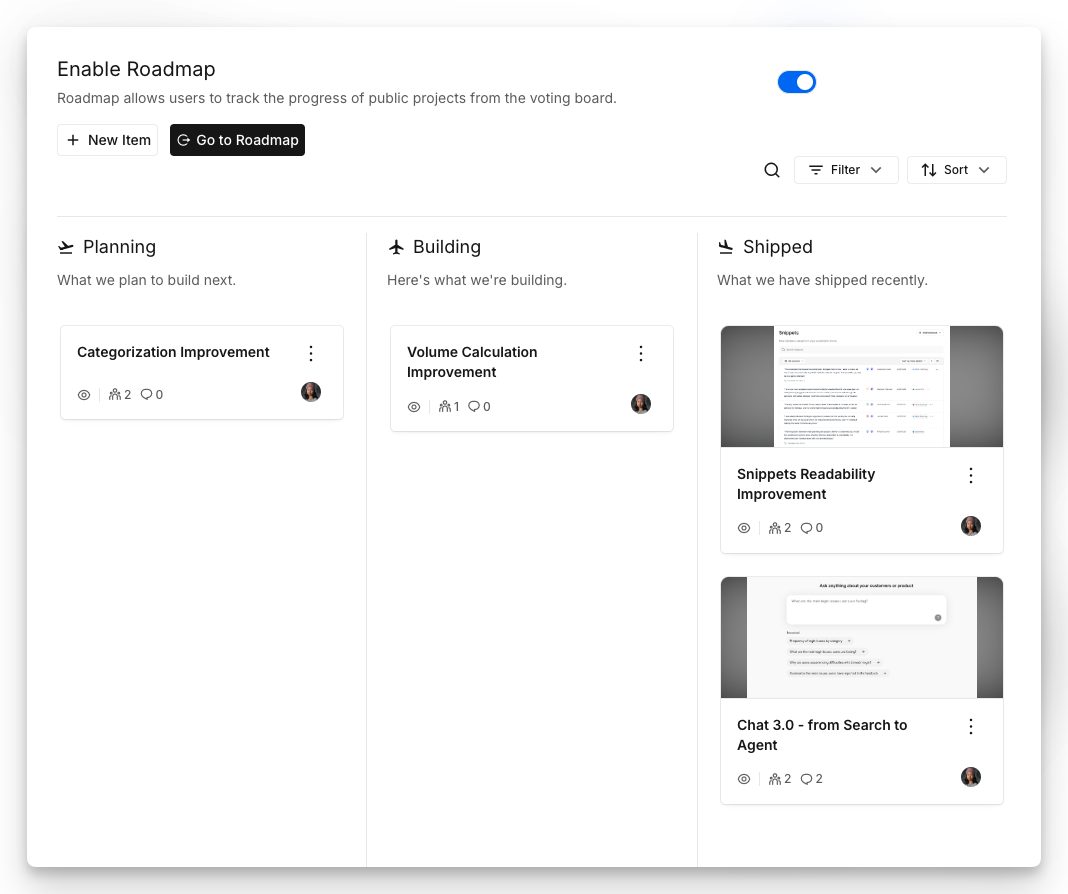 To utilize the roadmap, go back to the navigation menu and choose "Roadmap" in the *Portal* section.
The roadmap allows you to share projects and their status with your customers.
This can be as granular as you'd like. We often see customers use it at a
"project" or "feature" level, such that the items are meaningful to users,
and there aren't so many that it becomes overwhelming.
You can configure the title, description, status, labels, and author, as
well as a cover image!
By default, the save button at the bottom right will save as a 'draft', meaning it is only visible internally and not to your users on the public portal Roadmap view. If you are ready to publish it to the public, then you can click the arrow on the button and switch to 'publish' mode. Don't worry, you can delete the item or convert it back to a draft later!
**Commenting**\
When portal users comment on a roadmap item, that comment will become a Feedback record inside of Reforge Insights and become visible on the public portal feedback list.
To utilize the roadmap, go back to the navigation menu and choose "Roadmap" in the *Portal* section.
The roadmap allows you to share projects and their status with your customers.
This can be as granular as you'd like. We often see customers use it at a
"project" or "feature" level, such that the items are meaningful to users,
and there aren't so many that it becomes overwhelming.
You can configure the title, description, status, labels, and author, as
well as a cover image!
By default, the save button at the bottom right will save as a 'draft', meaning it is only visible internally and not to your users on the public portal Roadmap view. If you are ready to publish it to the public, then you can click the arrow on the button and switch to 'publish' mode. Don't worry, you can delete the item or convert it back to a draft later!
**Commenting**\
When portal users comment on a roadmap item, that comment will become a Feedback record inside of Reforge Insights and become visible on the public portal feedback list.